Travel eSIM Guide
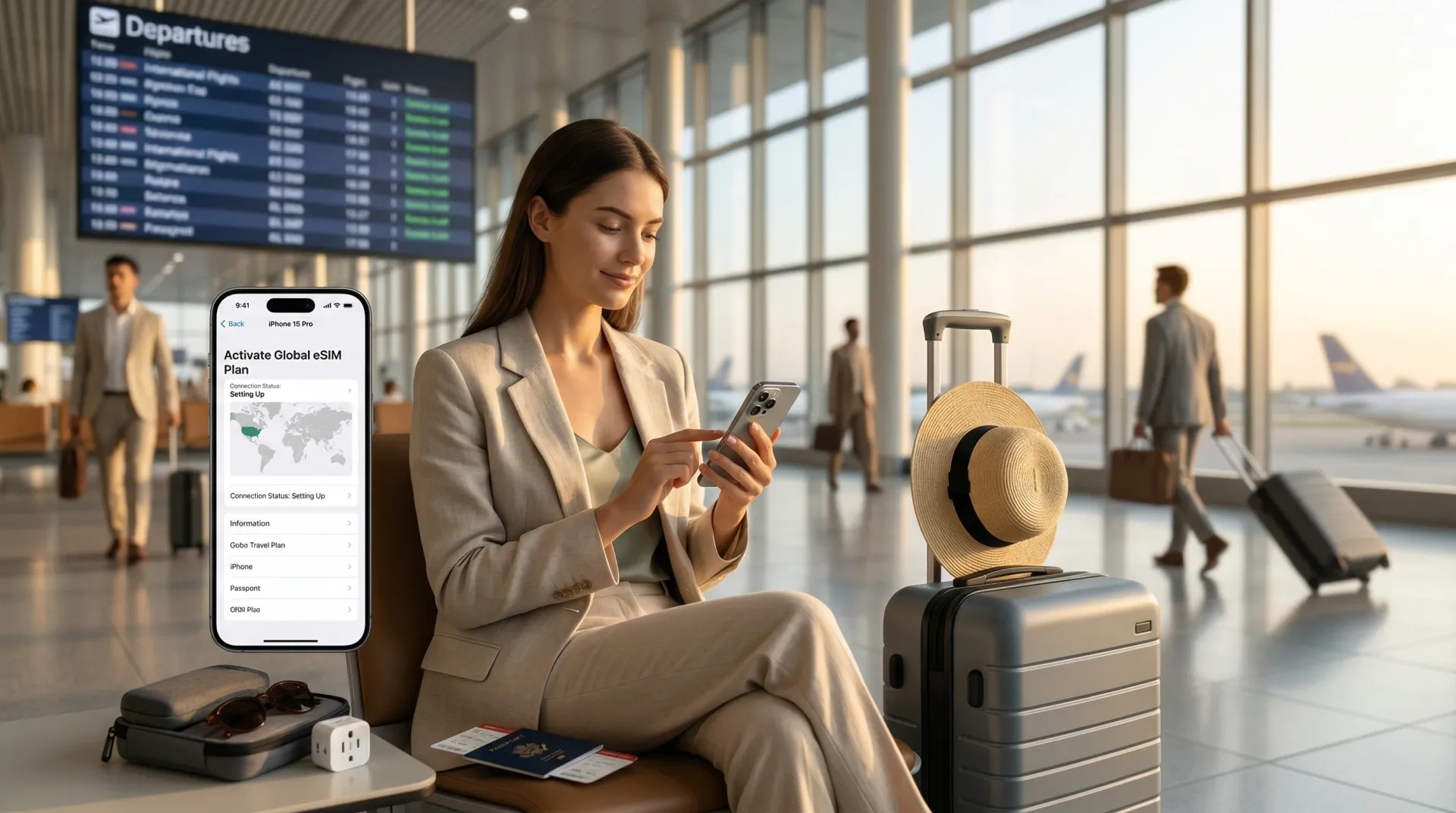
For international travel today, eSIM has basically become the default way to get online. Whether it’s multi-country Europe trips, city explorations, short business trips, or cruise port days, eSIM’s biggest advantage isn’t being “new tech” — it’s being hassle-free.
eSIM is a digital SIM built into your phone — no physical card needed. iPhone XS, XR, and newer models all support it, and setup typically requires Wi-Fi or a hotspot.
Why eSIM is Perfect for Travel
Three core benefits:
1. No Physical Card Swapping
No more hunting for SIM cards at the airport, swapping them out, or keeping track of your original card.
2. Set Up Before You Leave
Install the eSIM at home before departure. When you land, just switch your data line — no scrambling for airport Wi-Fi.
3. Perfect for Multi-Country Routes
If you’re visiting multiple countries, multiple cruise ports, or crossing borders, eSIM is much simpler than buying local cards at each stop.
How Much Data Should You Buy?
No absolute standard, but think in terms of 1GB / 2GB / 3GB+ per day.
1GB/Day: Light Use
Good for:
- Map navigation
- Messaging (WeChat/WhatsApp)
- Looking up restaurants and attractions
- Ride-hailing apps
- Occasional web browsing
If you’re just navigating and messaging during the day and using hotel Wi-Fi at night, 1GB/day is often enough.
2GB/Day: The Sweet Spot for Most
This is my top recommendation. Travel data usage often comes from small actions that add up:
- Frequent navigation
- Uploading a few photos
- Checking attractions, menus, reviews
- Watching a few social media videos
- Switching to cellular when hotel Wi-Fi is unstable
2GB/day is usually the most balanced choice.
3GB+/Day: Heavy Users
Buy bigger if you:
- Frequently shoot and share videos
- Use TikTok, YouTube, Instagram heavily
- Share hotspot with laptop, iPad, or travel companions
- Rely on mobile data almost all day
Video and hotspot sharing consume the most data.
Simple Buying Formula
| Usage Level | Formula | 7-Day Example |
|---|---|---|
| Light | Days × 1GB | 7GB |
| Normal | Days × 2GB | 10-15GB |
| Heavy | Days × 3GB | 20GB+ |
Better to buy slightly more than stress about data every day.
Where iPhone Data Secretly Disappears
The biggest data drains aren’t messaging — they’re:
- Short videos
- Photo and video uploads
- Extended navigation
- Hotspot sharing
- Background sync
Photo Sync is the Hidden Trap
If iCloud Photos is on, it saves your photos and videos to iCloud — including original formats, full resolution, 4K videos, and Live Photos.
The real data drain is often not what you’re actively using, but what your phone is syncing in the background.
Best approach: Keep shooting, but don’t let it sync over cellular. Take photos during the day, sync when you’re back on hotel Wi-Fi.
Most Useful iPhone Data-Saving Settings
1. Enable Low Data Mode
Settings → Cellular → Cellular Data Options → Low Data Mode
This limits background network use, reduces streaming quality, pauses automatic downloads and backups.
2. Disable Wi-Fi Assist
Settings → Cellular → scroll to bottom → Wi-Fi Assist
Wi-Fi Assist automatically switches to cellular when Wi-Fi is weak. This is why many people wonder “why is my data draining when I’m connected to Wi-Fi?“
3. Disable App Store Auto-Updates
Settings → App Store
Turn off:
- Automatic Updates
- Automatic Downloads
- In-App Content
- Video Autoplay
4. Disable iCloud Backup Over Cellular
Settings → Apple ID → iCloud → iCloud Backup → Back Up Over Cellular
Don’t let your phone do full backups over cellular while traveling.
5. Disable Cellular for High-Usage Apps
Settings → Cellular
View each app’s data usage and disable cellular access for specific apps.
Which Apps Should Keep Cellular Access
Keep Enabled
| App Type | Examples |
|---|---|
| Navigation | Google Maps, Apple Maps |
| Messaging | WeChat, WhatsApp |
| Transportation | Uber, Lyft |
| Translation | Google Translate |
| Travel | Hotel/Airline/Cruise apps |
Consider Disabling
| App Type | Examples |
|---|---|
| Cloud Sync | Photos, iCloud Drive |
| App Store | App Store |
| Video | YouTube, Netflix, Disney+ |
| Games | Any game that downloads resources |
| Non-urgent Social | Instagram, TikTok (unless you really need to scroll) |
Practical Travel Data-Saving Plan
Before Departure
- Install eSIM in advance
- Enable Low Data Mode
- Disable Wi-Fi Assist
- Disable App Store auto-updates
- Disable iCloud Backup over cellular
- Disable cellular for non-essential apps
During Travel
- Use data only for navigation, messaging, and info lookup
- Take photos freely, don’t rush to upload
- Sync videos on hotel Wi-Fi
- Check cellular usage stats each night to identify data hogs
Ingrid’s Summary
For typical travelers, 2GB/day is usually the most reliable choice.
| Usage Pattern | Recommended Data |
|---|---|
| Navigation, messaging, lookups only | 1GB/day |
| Normal travel, occasional photo/video | 2GB/day |
| Frequent video, streaming, hotspot | 3GB+/day |
If you find your data draining fast despite light usage, check these four things first:
- iCloud Photos / Photo sync
- Wi-Fi Assist
- App Store auto-updates
- Background data from video/social apps
Travel eSIM isn’t about chasing new tech — it’s about making travel simpler.
Questions? Contact me for travel planning help.